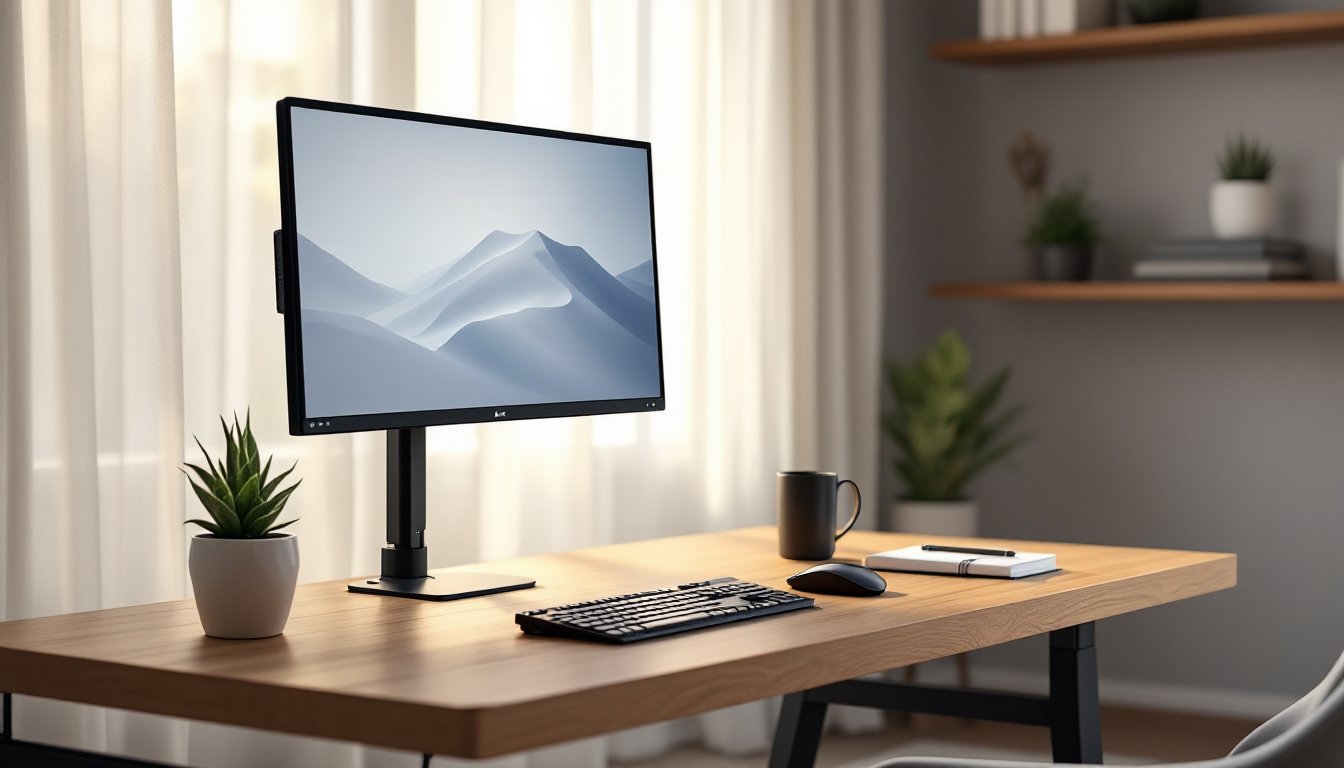
Staring at a monitor perched on a stack of books or locked into one fixed position isn’t just uncomfortable, it’s a fast track to neck strain, shoulder pain, and a cluttered desk. A monitor arm solves these problems by freeing up workspace and letting users position screens at eye level. But not everyone wants to spend $150+ on premium articulating arms. That’s where the Amazon Basics monitor arm comes in. It’s a budget-friendly single-monitor mount that’s gained traction among home office builders and DIYers looking for ergonomic upgrades without the premium price tag. This guide walks through what it offers, how to install it, and whether it’s the right fit for a workspace.
Table of Contents
ToggleKey Takeaways
- The Amazon Basics monitor arm delivers ergonomic desk mounting for under $120, making it a budget-friendly alternative to premium arms that cost $180–$250.
- This monitor arm supports screens weighing 2.2–25 lbs with VESA 75×75 mm and 100×100 mm patterns, compatible with most standard 24–27 inch monitors.
- Installation takes 20–30 minutes with dual mounting options—C-clamp or grommet—giving flexibility for different desk types without requiring drilling expertise.
- Gas spring adjustment enables smooth, tool-free height changes and accommodates tilt (+85° to –30°), swivel, and rotation for optimal ergonomic positioning.
- The Amazon Basics monitor arm works best for home offices with standard monitors; it’s not suited for heavy ultrawides over 25 lbs or deep desks requiring extended reach.
- Integrated cable management clips and a sturdy steel frame provide better durability than budget imports, though slight wobble during typing is normal for this price range.
What Is the Amazon Basics Monitor Arm and Why Consider It?
The Amazon Basics monitor arm is a single-monitor desk mount with gas spring articulation, designed to hold screens weighing 2.2 to 25 pounds. It clamps or grommets onto most desks and provides tilt, swivel, rotation, and height adjustment.
It’s essentially a no-frills version of higher-end arms like the Ergotron LX or Humanscale M2, stripped down to core functionality. The appeal? Price. It typically retails for under $120, sometimes closer to $100 during sales, which undercuts most name-brand competitors by 30-50%.
For DIYers setting up home offices or small studios, this arm checks the basics: it gets the monitor off the desk surface, opens up room for keyboards or paperwork, and allows for quick position changes throughout the day. It’s not engineered for heavy gaming monitors or ultra-wide displays, but for standard 24- to 32-inch screens in the 15-20 lb range, it’s a solid entry point.
One reason to consider it over other budget arms is build quality. Cheaper options (sub-$50) often use friction joints that sag over time or plastic components that crack under load. The Amazon Basics version uses a steel frame and a gas spring mechanism, which maintains tension better and feels more stable during adjustment. It’s not bombproof, but it’s a step up from the bottom-tier imports flooding online marketplaces.
Key Features and Specifications
Understanding what this arm can and can’t do starts with the specs. Here’s what matters:
Weight capacity: 2.2 to 25 lbs. That covers most mainstream monitors but excludes heavier ultrawides or older LCD panels.
VESA compatibility: Supports 75 x 75 mm and 100 x 100 mm mounting patterns. Check the back of the monitor for four screw holes arranged in a square, if they’re spaced 75 mm or 100 mm apart, it’ll fit. Most modern monitors use one of these standards.
Mounting options: Includes both a C-clamp (for desks up to 2.4 inches thick) and a grommet mount (requires drilling a hole, typically 0.4 to 2.4 inches in diameter). The clamp is faster and doesn’t damage the desk, but the grommet offers a cleaner look and more stability on thinner surfaces.
Articulation range:
- Tilt: +85° / -30° (screen can angle down or nearly flat up)
- Swivel: 360° rotation at the base and VESA plate
- Height adjustment: Approximately 13 inches of vertical travel along the pole
- Extension: Arm extends about 15.75 inches from the mounting point and retracts to about 4.75 inches
Cable management: Integrated clips and channels run along the arm to keep monitor and power cables tidy. They’re not the most elegant solution, think zip-tie holders molded into plastic, but they work.
Finish: Available in black or silver. The coating is matte and resists fingerprints reasonably well.
For a workspace with standard 24-27 inch monitors, these specs cover most ergonomic needs. The gas spring tension is adjustable via a hex key (included), so users can fine-tune resistance based on monitor weight.
Installation and Setup: A DIY-Friendly Process
Installing the Amazon Basics monitor arm is straightforward, even for someone who’s never mounted hardware before. Expect 20-30 minutes start to finish. Here’s the process:
Tools needed:
- Allen wrenches (included with the arm)
- Phillips screwdriver (for attaching the VESA plate)
- Tape measure (optional, but helpful for centering the mount)
Materials:
- The monitor arm kit (includes clamp, grommet, VESA plate, screws, and plastic washers)
- A sturdy desk or table (minimum 0.4 inches thick, maximum 2.4 inches for the clamp)
Step-by-step installation:
-
Choose mounting method. If the desk has a cable-management grommet hole or the user wants a permanent, low-profile mount, use the grommet. Otherwise, the C-clamp is faster and doesn’t require drilling.
-
Attach the base. For clamp mounting, slide the C-clamp under the desk edge and tighten the thumbscrew until snug, don’t overtighten or it can dimple softer wood surfaces. For grommet mounting, remove the desk’s existing grommet (if any), slide the mounting plate through, and secure from below with the included hardware.
-
Attach the arm to the base. The arm’s mounting collar slides over the pole and locks with a set screw. Align it so the arm extends toward the user, then tighten with the included Allen wrench.
-
Mount the VESA plate to the monitor. Remove the monitor’s factory stand (usually four screws on the back). Align the VESA plate with the 75 mm or 100 mm screw holes and attach using the screws provided (multiple lengths are included to accommodate different monitor thicknesses).
-
Attach the monitor to the arm. The VESA plate hooks onto the arm’s quick-release mechanism. Slide it in and twist the locking collar until it clicks.
-
Adjust gas spring tension. If the monitor sags or floats up on its own, use the hex key to turn the tension adjustment screw (located on the arm’s joint). Turn clockwise to increase tension for heavier monitors, counterclockwise for lighter ones. Test and tweak until the monitor holds position at any height.
-
Route cables. Use the clips along the arm to bundle the monitor cable, power cord, and any USB or HDMI connections. This step is optional but keeps the setup clean.
Safety note: Always wear safety glasses if drilling a grommet hole. Use a spade bit or hole saw on low speed to prevent splintering, and clamp a scrap board underneath to catch tearout.
No permit or inspection is required for monitor arm installation, it’s a cosmetic/ergonomic upgrade, not structural work. But if mounting to a shared or commercial workspace, check with building management first.
Adjustability and Ergonomic Benefits
The whole point of a monitor arm is to dial in ergonomics. A fixed monitor stand forces users to hunch, crane their necks, or sit too high. An adjustable arm lets them set the screen at neutral eye level, the top of the display should sit roughly at or slightly below seated eye height, with the screen about an arm’s length away.
The Amazon Basics arm handles this well for most users. The gas spring mechanism provides smooth, tool-free height changes. Unlike cheaper friction-based arms that require loosening a knob every time, the gas spring holds position automatically. Push up or pull down, and it moves with light resistance.
Tilt is useful for minimizing glare from overhead lights or windows. The -30° downward angle works for sit-stand desks when the user is standing, while the +85° upward tilt is handy if the monitor doubles as a secondary display viewed from across the room.
Swivel and rotation let users share the screen with someone next to them or switch between landscape and portrait orientation. Portrait mode is especially useful for coding, reading long documents, or vertical web browsing.
One limitation: the arm’s reach (about 16 inches extended) might not be enough for very deep desks or corner setups. If the desk is 36+ inches deep and the mount is clamped at the back edge, the monitor might not pull close enough. In that case, mounting the base closer to the front edge or using a desk with a cutout works better.
Another consideration is stability. The arm is solid when locked in position, but it does wobble slightly when typing on a keyboard attached to the monitor or during adjustment. This is common with gas spring arms under $150. For a completely rigid setup, a heavy-duty pole-mounted arm or a fixed VESA mount is a better bet, but those sacrifice adjustability.
Compatibility and Weight Capacity Considerations
Not every monitor works with this arm. Here’s how to tell if it’ll fit:
Weight: Scales are helpful here. If the monitor weighs over 25 lbs, the gas spring won’t support it properly, and the arm will sag or fail to hold height. Check the manufacturer’s specs or weigh the monitor (without the stand) on a bathroom scale. Most 24-27 inch screens fall between 10-18 lbs. A 32-inch gaming monitor or ultrawide might push 20-24 lbs. Anything over that needs a higher-capacity arm.
VESA pattern: Flip the monitor over or check the product manual. If there are four threaded inserts in a square pattern measuring 75 mm or 100 mm on each side, it’s compatible. Some smaller monitors (under 20 inches) use 50 x 50 mm, which this arm doesn’t support without an adapter plate.
Desk thickness: The C-clamp accommodates desks from 0.4 to 2.4 inches thick. Measure the edge where the clamp will attach. Glass desks, desks with pronounced lips, or ultra-thin surfaces (like some Ikea tabletops under 0.5 inches) may not work, the clamp won’t grip securely, and the mount can slip. For glass or thin desks, the grommet mount is safer if a hole can be drilled.
Cable clearance: If the monitor has rear-facing ports that stick out significantly, check clearance between the VESA plate and the back of the screen. Some monitors with protruding HDMI or power inputs may require right-angle adapters to avoid cable kinks.
Many affordable monitor arms share these same compatibility limits, so it’s not a unique shortcoming, just something to verify before buying.
Pros, Cons, and Best Use Cases for Your Home Office
Pros:
- Price. At under $120, it’s one of the better values in the single-monitor arm category. Comparable quality from Ergotron or Humanscale runs $180-$250.
- Gas spring adjustment. Smooth and easy to reposition without tools. More user-friendly than friction joints.
- Sturdy build. Steel frame and quality hardware. Feels more durable than generic imports.
- Dual mounting options. Clamp or grommet gives flexibility depending on desk type.
- Cable management. Integrated clips keep cords tidy, even if the design isn’t fancy.
Cons:
- Weight ceiling. The 25 lb max excludes heavier ultrawides and older monitors.
- Reach limitations. The 16-inch extension isn’t enough for very deep desks or far-back mounting positions.
- Moderate wobble. Typing or adjusting causes slight movement. Not a dealbreaker, but noticeable.
- No quick portrait lock. Rotating to portrait orientation works, but there’s no detent or stop, users have to eyeball it.
- Basic aesthetics. Functional, not sleek. If appearance matters, higher-end arms have cleaner lines and premium finishes.
Best use cases:
- Home offices with 24-27 inch monitors in the 10-20 lb range.
- Dual-monitor setups where users buy two arms instead of a dual-mount (gives more independent adjustability).
- Sit-stand desks where height and tilt need frequent changes.
- Small studios or workstations where desk space is tight and the monitor needs to swing out of the way.
- Budget-conscious DIYers who want ergonomic improvement without splurging on premium gear.
Not ideal for:
- Heavy gaming monitors over 25 lbs.
- Ultra-deep desks (36+ inches) without forward mounting positions.
- Users who demand zero wobble (video editors, graphic designers working with pen tablets).
- Multi-monitor arrays (this is a single-arm mount: dual or triple configurations require separate hardware).
Compared to other tested monitor arms, the Amazon Basics model hits a sweet spot for general use, though it’s not a specialist tool. For everyday ergonomic adjustments and desk space reclamation, it delivers.
Conclusion
The Amazon Basics monitor arm won’t win design awards, but it does the job it’s built for: getting a standard monitor off the desk and into an ergonomic position without requiring a second mortgage. Installation is DIY-friendly, adjustability is smooth enough for daily use, and the price leaves room in the budget for a better chair or keyboard. If the monitor falls within the weight range and the desk is compatible, it’s a practical upgrade that pays off in comfort and workspace.